Social media content creators are always looking for a way to make their skits go viral. Having a good camera and script might not be enough in order to hold an audience's interest.
If all the characters in a video have the same voice, the story is not deep and is less interesting. This is a common problem faced by creators who act more than one character alone.
With the AI voice generator in CapCut Desktop Video Editor, it is easy to get every character to speak uniquely. It adds an extra layer of depth to the story and makes the skit worth watching. Although there are free features on CapCut PC, some of the premium features come at a cost.
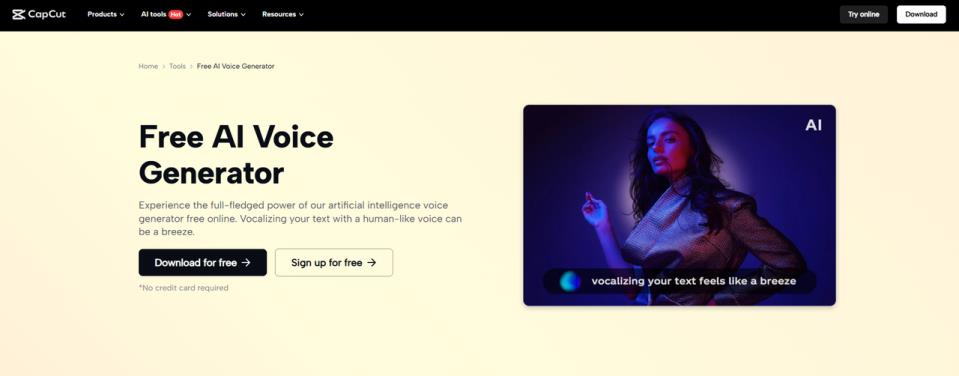
AI Voice Generator for Social Media Skits
In every skit, the voice of the character is as important as their facial appearance. A unique voice enhances the memorability of a character and enables the audience to identify with the content.
If all the characters within a video communicate similarly, there is a possibility of confusing audiences and weakening the comical or dramatic effect. Social media content creators, therefore, need tools that enable them to breathe more life into characters.
With CapCut Desktop Video Editor's AI voice generator, one creator can play multiple roles without the use of other actors. The software offers natural voice options that are human-like in tone and clear, and not robotic.
You can pick from different tones and styles so that each character has the ideal match, whether the role is comic, serious, or playful. This simple feature can turn an ordinary skit into something engaging to watch.
It is also notable that while CapCut PC is giving away a lot of tools for free, some of the advanced voice functions may only be available with a paid plan.
Arguments Why Social Media Creators Should Use an AI Voice Generator
Bringing Characters to Life
Characters come alive when each one has their voice. A skit has life when each character has its own sound. With the AI voice generator in CapCut Desktop Video Editor, content creators can give a teacher a certain voice, a student another, and a narrator a different tone.
The variation keeps the audience engaged and facilitates easier storytelling. Variability in voices can also create humor, tension, or emotion effortlessly. A creator can create many characters by himself without extra help.
Time and Effort Saving
Line recording for different characters takes hours and needs good equipment. Not all creators don't own microphones or quiet rooms.
The AI voice creator of CapCut Desktop Video Editor lets you enter lines, select a voice, and have audio ready to use instantly. That saves work, just like the AI video upscaler feature in CapCut PC saves time improving old videos. Both save editing work but improve video quality.
Creative Freedom and Professional Sheen
Natural voices are not needed in all skits. Some are filmed in fun, robotic, or dramatic voices. CapCut PC brings creativity in seconds to life, so creators can mix and match styles and moods.
Sleek visuals paired with silky-smooth AI voices give videos a slick, professional sheen. Easy edits gain legitimacy, making little creators' products platform-ready for bigger platforms and audiences.
Steps to Use AI Voice Generator in CapCut Desktop Video Editor
Step 1: Download and Install CapCut PC
Start by downloading CapCut PC from its website. Once the installer has downloaded, you open it and follow the instructions to install it. Once installed, you register or log in with your account to access the tools.
While most tools are available for free, premium voice tools and other professional tools may have to be paid for. Having installed the desktop version, you can access the editor anytime on your computer.

Step 2: Import Your Skit Video
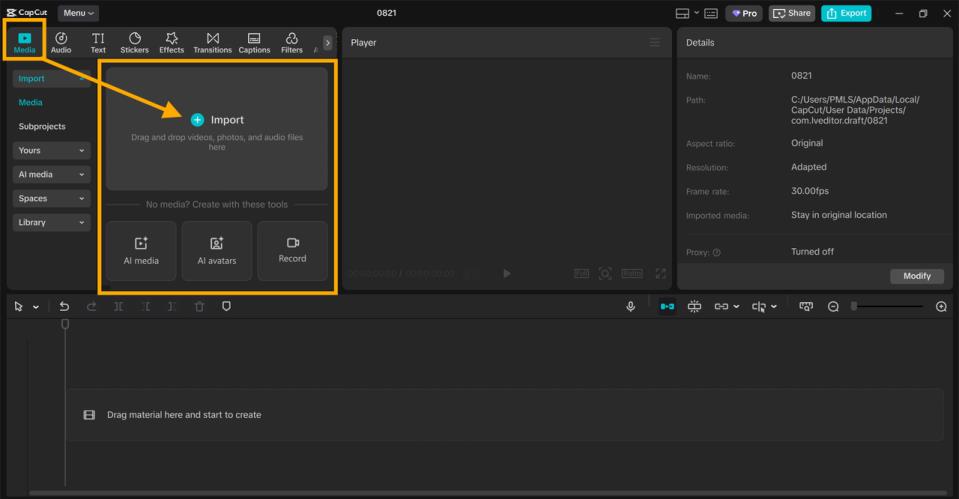
Launch CapCut Desktop Video Editor and click the "Import" button. Select the video file that you wish to edit, and it will be imported into the editing timeline. This gives you a reference point to start adding voices and other effects to your skit.
Step 3: Add AI-Generated Voices
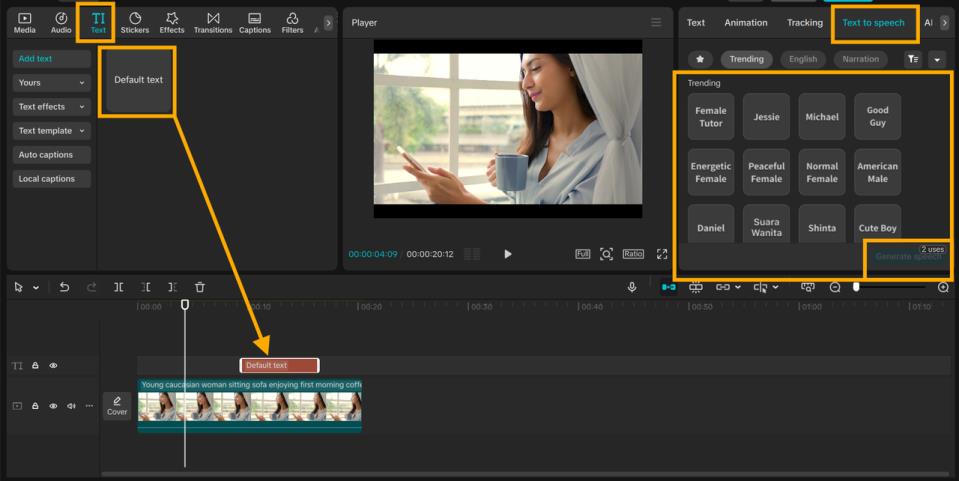
To create voices for your skit, begin by selecting the "Text" box tab and pasting your script there. Next, open the "Text to speech" from the right side panel. Pick a voice that you would want the character you are creating to have. Next, click "Generate Speech."
The text to speech AI feature within CapCut PC will instantly transform your written words into natural sound. Repeat the same steps to assign different voices to each role in your skit.
Step 4: Export and Share
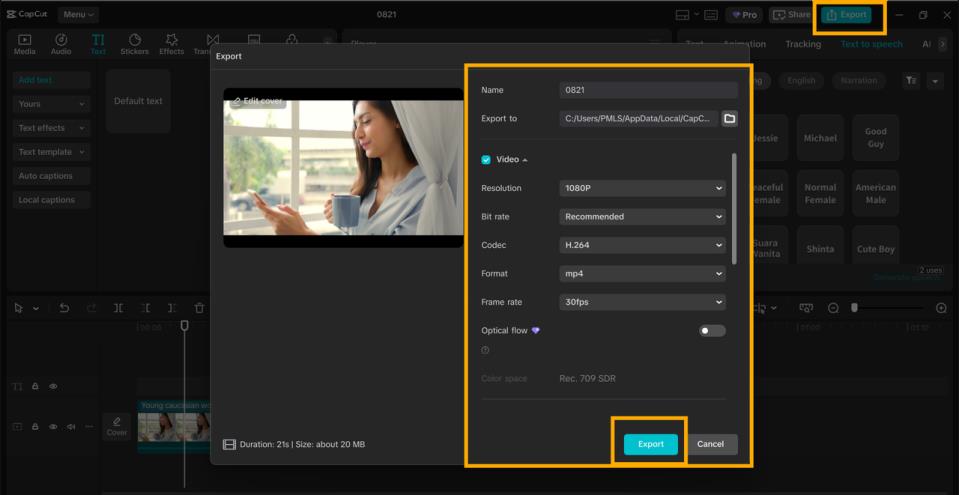
After finalizing your edit, click the “Export” button. Choose the video resolution, frame rate, and format that best suit your platform. Once the export is complete, save the file and share it directly on TikTok, Instagram, YouTube, or any other social media channel.
Conclusion
Content creators on social media no longer have to spend time with boring and similar-sounding characters for their skits. Through the AI voice assistant offered by CapCut Desktop Video Editor, each character can possess a unique voice that makes the story come alive.
The feature saves time, boosts creativity, and adds a touch of professionalism to each video. While there are plenty of free features available in CapCut PC, advanced voice features may have to be paid for. However, the uplift it creates for your content is a try worth making.
If you want your skits to be trending and have more viewership reach, start experimenting with these AI tools today. Make your next skit with strong voices using these and see what the difference looks like.